Playing games on Game Night — the Player guide
Welcome! This guide shows you how to use Game Night on your phone — how to sign in, start a game, keep score, see who's winning, and use the event tiles (wallet, betting, your crew, and more). It's written for everyone, no tech knowledge needed. If you can tap buttons, you're ready.
Running the game night for your group? There are extra sections marked "If you're an Event Official", "If you're a Bookie", and "If you're a Teller" — those are the people who run the scores, betting, and physical coins. Everyone else can skip those.
Whose crew is who? Throughout the app — the leaderboard, a match, the lobby, score sheets — you'll see a small coloured dot next to each player's name. That dot is their crew for the weekend. No dot means they aren't on a crew yet.
New to the words we use? There's a plain-English glossary at the bottom.
How the economy works — betting, coins, treasure, Regatta, Awards? That's the Doubloon economy guide. This guide is about the buttons; that one is about the rules.
1. Get in — claim your profile
The organiser (the "super admin") has already created a profile for you — your name and a picture — and given you a 4-digit code. The first time, you "claim" that profile so it's yours on your phone.
- Open
https://gamenight.hsu.mobiin your phone's browser. (Your organiser may give you a different address — use whatever they share.) - On the "Who are you?" screen you'll see everyone's pictures. Tap yours.
- Type your 4-digit code and you're in.
- The first time only, you'll be asked to set your own 4-digit PIN (type it, then type it again to confirm). This PIN is just for you — you'll use it if you ever sign in again. Pick something you'll remember.
That's it — you're claimed. You need internet for this first step (it checks your code). After that, the app remembers you on this phone and works even without a signal.
Tips
- Can't see your name? Ask the organiser to add a profile for you.
- "Claiming needs a connection"? You're offline — get back on Wi-Fi or data and try again.
- Add it to your home screen (your browser's "Add to Home Screen") so it opens like a normal app.
- New phone, or signed out? Just claim again and enter your PIN instead of the original code. One phone is active at a time, so claiming on a new one signs the old one out.
2. Find your way around
Once you're in, there's a bar along the bottom with three tabs:
| Tab | What it's for |
|---|---|
| Home | Your profile and your list of game nights (events). Your starting point. |
| Play | The game night you're currently in — start or rejoin a game here. |
| Board | The leaderboard — who's winning. |
At the top of the screen there's a compact bar with a few icons:
- ☀️/🌙 Theme — toggle light/dark mode.
- 🔔 Notifications — toggle push alerts on or off for this device.
- 💬 Chat — open the event-wide chat (shows a red badge when there are unread messages).
- ● Sync dot — a coloured dot showing your connection: green = online, yellow = syncing, red/grey = offline.
The very first screen after signing in is your events — the game nights you've been added to. Tap one to go in. (Don't see the game night you expected? Ask the organiser to add you to it.)
Inside an event you'll see tiles for everything you can do: Wallet, Betting, Crews, Regatta, Awards, Broadcast (send a message to every member — anyone in the event can use it), and more. Each is covered in this guide. Let's start with games.
3. Start a game (you become the host)
Anyone can start a game. Whoever starts it is the host for that game — you'll keep score and tap the buttons. Everyone else just plays.
- In your event, tap Start a New Game. This opens the game picker, a list of the games your organiser set up — each shows a one-line hint of how it's scored ("Score each round", "Closest guess wins", "Team scoring").
- Tap the game you want to play. You drop into the lobby. You're now the host.
Each game session carries a short match code (4 letters, shown in the lobby and on every match) — handy for telling people which game to join, or for referencing a bet.
Already a game on the go? Under Jump back in, each open match card shows its host, the time it started, and its match code — tap the card to return to it.
4. The lobby — get everyone in
Before a game starts, you're in the lobby — the waiting room where you gather players.
- Add players: tap a player's pill under Add players to drop them in. (They can also join themselves from their own phone if they're in the event.) Added players move up into the In game section.
- Remove someone: tap the × on their pill in the In game section. It's a frictionless toggle — tap to add, tap the × to take back out. No confirm dialog.
- The 👑 crown shows who the host is. The host can even drop themselves off the roster and still run the game — they just won't be playing.
- Singles or Teams? If you're the host, use the Next game switch to pick Singles or Teams for the round you're about to play.
- Tags (if your organiser made any): tap the labels that fit this game (like "Round 1"). They just help sort the leaderboard.
When everyone's in, tap Start match. You need at least two players (or two teams) before the button unlocks. The player list is now locked for this round.
5. Play a game
What you see depends on the kind of game your organiser set up.
The usual: host keeps score
- Play your game in real life.
- On the phone it says "Game … in progress." When you're done, the host taps End & enter scores.
- A results sheet opens. Type each player's score. As you type, the app shows the points each person will earn (→ 2pt, etc.) — highest scorer gets the most points. Everyone needs a score, and no two can be the same (see Every score must be different below).
- Tap Submit results.
Not the host? You'll just see "Playing…" and the running standings — the host handles the scoring. That's normal.
Team games
If you chose Teams, the roster switches to a plain list with a letter button per team instead of pills (no × to remove someone here — switch back to Singles first if you need to drop a player). Set the number of teams, tap the letter buttons to put each person on a team (or tap Shuffle to split them randomly), then Start. After the round, the host taps Enter team scores, types each team's score, and taps Submit team scores. You type one score per team, not one per player — and as with singles, two teams can't have the same score.
"Closest guess" games
Everyone plays on their own phone: tap Join game, type your guess as a 24-hour time (19:45 for a quarter to eight in the evening), and tap Lock in (you can Change it until scores are revealed). When everyone's in, the host taps Lock joining, then Enter answer & score, types the correct answer, and taps Reveal & score. Closest guess without going over wins.
The winner's prize is set on the game itself — 1 point unless your organiser chose something bigger. Everyone else scores 0 for the round, and everyone (winner included) still gets the flat +1 for playing.
Guesses have to be different too — if someone already claimed the time you wanted, you'll see "That time is taken — pick another."
How team points are worked out
You type one score per team, but points are paid out over the whole match, not just the number of teams — so bringing more players to a team game is worth more, not less.
Picture the match as a ladder with one rung per player. Six players means rungs worth 5, 4, 3, 2, 1, 0. The winning team takes the top rungs, the next team the ones below, and so on. Each team then shares its rungs equally between its members, rounded up in your favour:
| Match | Team | Takes rungs | Each member earns |
|---|---|---|---|
| 4 players, 2 teams of 2 | winners | 3 + 2 | 3 |
| runners-up | 1 + 0 | 1 | |
| 6 players, 3 teams of 2 | 1st | 5 + 4 | 5 |
| 2nd | 3 + 2 | 3 | |
| 3rd | 1 + 0 | 1 | |
| 6 players, 2 teams of 3 | winners | 5 + 4 + 3 | 4 |
| runners-up | 2 + 1 + 0 | 1 |
Uneven teams are fine. A team of 3, a team of 2 and one person playing alone (6 players) earns 4 each, 2 each, and 0. Being on a smaller team isn't a penalty — you simply share fewer rungs between fewer people.
Two things worth knowing:
- Losing isn't always zero. A last-place pair sharing rungs 1 and 0 still earns 1 each (rounded up). Only a last-placed solo player earns 0.
- It doesn't matter who's on which team. Rungs follow the team's finishing position, so shuffling the teams can't change how many points the match pays out.
Everyone also gets their +1 participation point on top, the same as any other game.
Every score must be different
A match never ends in a tie, so the app won't accept the same score twice:
- Singles — two players can't share a score.
- Teams — two teams can't share a score.
- Closest guess — two players can't lock the same time.
If you try, the entry sheet tells you who clashed and nothing is submitted:
Bo and Cy both have 20 — scores in a match must be different.
Every player also needs a score before you can submit — a blank field isn't treated as zero, because then everyone left blank would be tied on 0:
Enter a score for Cy.
If the game really was a draw, break it with whatever you'd use in real life — who got there first, a sudden-death throw, a coin toss — and enter that as the result. The app needs a strict order to award points from.
An Event Official correcting a game later has to follow the same rule, so a fix can't accidentally introduce a tie.
6. After a game (a match)
Once scores are in, you'll see the winner celebrated 🎉 and the full result. Each round you play is numbered as a match (Match 1, Match 2, …) inside this run of games — a game session. Each session is a single match: once it's scored, the host picks Start new game (jumps back to the game picker) or Leave (back to the event home).
Just want to step away? Tap ← Back at the top — you're back on the event home, and the scored match stays on the board.
About your scores: when the host submits, the result is provisional — it counts right away on the board but still needs a thumbs-up from the Event Official to become official. You don't have to do anything; just keep playing.
7. Your Wallet — check your balance, stash or trade coins
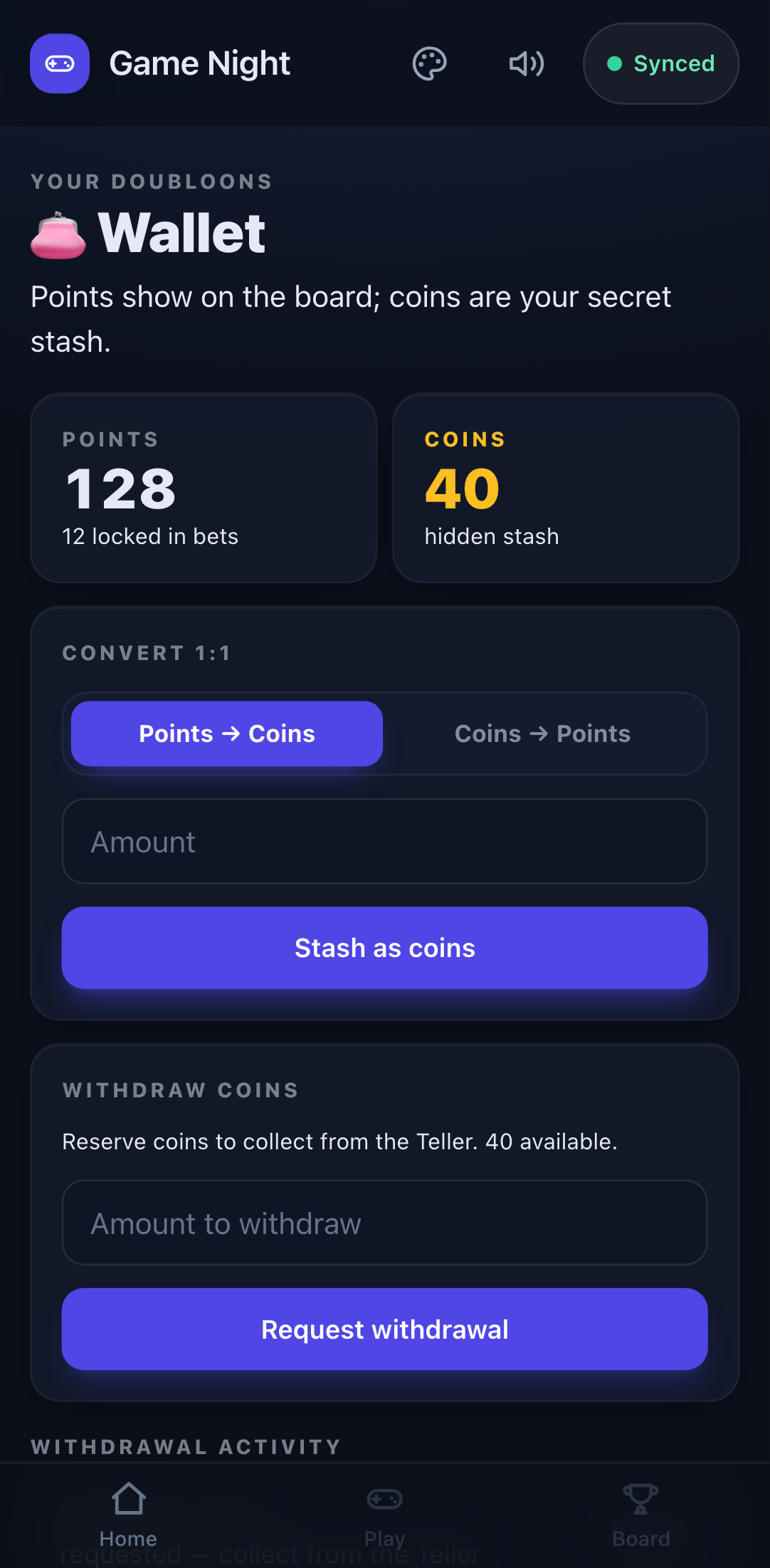
Your Wallet is where you manage your Doubloons: your live Points (public score) and your Coins (secret stash).
- Tap the Wallet tile on your event home.
- At the top, see your Points and Coins balances.
- Stash points as coins (hide wealth): tap Points → Coins, enter the amount, and tap Convert. Those Doubloons disappear from the board.
- Trade coins back to points: tap Coins → Points, enter the amount, and tap Convert. Do this before the weekend ends or your hidden coins won't count.
- Request physical coins: scroll to Withdraw, enter the amount, and tap Request withdrawal. The Teller will hand you the tokens when they're ready.
Points locked? If you have open bets, those points can't be stashed until the bet settles. See the economy guide for how locking works.
8. Betting — place a bet
Bet points on who'll win a game you're not playing in.
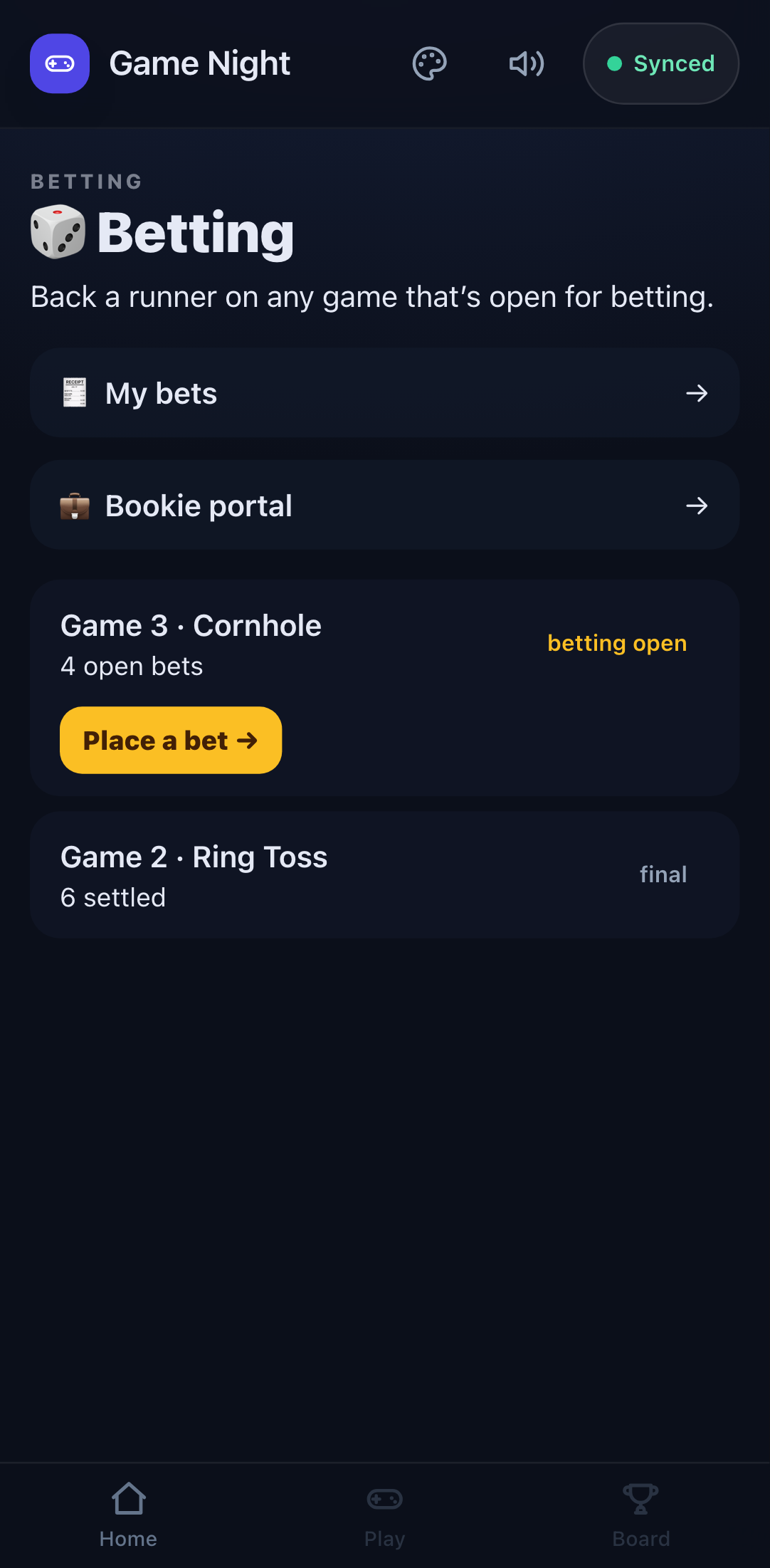
- Tap the Betting tile. You'll see each game as a card with a match code, a status pill (betting open, awaiting result, final, …), and a live closes in MM:SS countdown when the window is open. Once a window closes the card stays on the list — the countdown goes away and the pill flips to its final status; you just can't place new bets on it anymore.
- Tap Place a bet → on an open game to open the bet panel. Pick who you think will win — a player in singles, or a crew in team games.
- Enter your stake (how many points to wager). The panel clamps it to the allowed range, shows the minimum bet for that pick, and shows your potential payout.
- Tap Place bet. Your stake is locked until the game settles.
- To check your bets: tap My bets at the top of the betting screen — your open and settled slips, each with its match code and outcome.
Don't want to dig into the Betting tile? When a window is open, the event home shows an Open for betting card with a live countdown — tap it to jump straight to that game's bet panel.
See the economy guide for how odds work, why you can't bet on your own game, and how the house pays winners. Also see the Bookie section below if you're handing a paper slip instead of betting in the app.
9. Your crew — see your team
See which crew you're on, who's in it, and how the crews stack up.
- Tap the Crews tile.
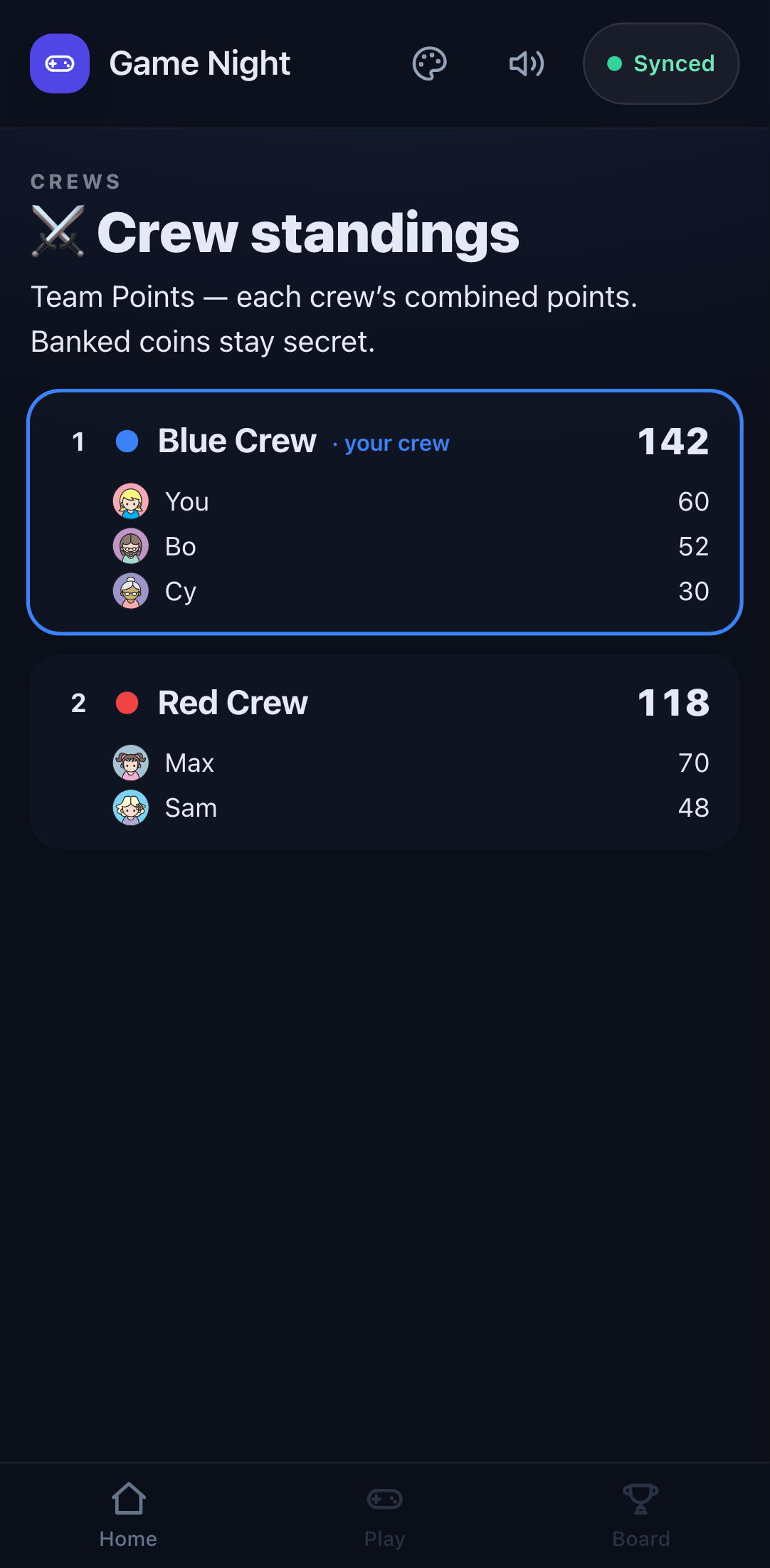
- You'll see both crews with their names, colours, and member lists.
- Team Points shows each crew's combined live points. Your crew is highlighted.
- A coloured dot next to each player's name shows their crew everywhere in the app.
No dot yet? You'll be prompted to pick one the first time you open an event from your Profile tab (the home tab) that doesn't have a crew set yet — no separate button, it just shows up. Once picked it's fixed for the weekend; your organiser can move you from the admin area if the sides need balancing.
See the economy guide for how crews and Team Points work.
10. The Regatta — join a race
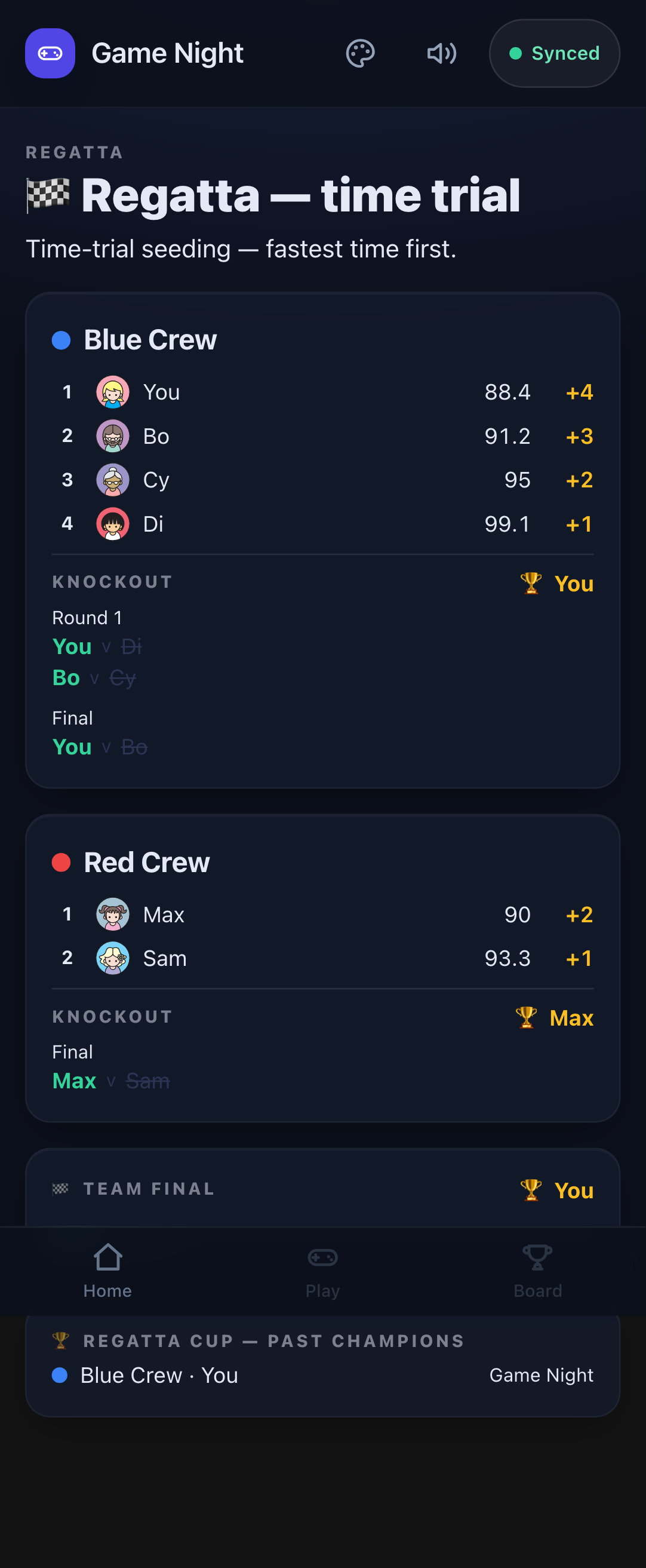
If your event is running the Regatta, this tile shows your crew's time-trial and knockout bracket.
- Tap the Regatta tile.
- If you raced: your best time appears in your crew's time-trial list.
- The bracket shows the knockout pairings. As matches are decided, winners advance.
- Each crew's top racer gets a 🏆 badge. When both crews have one, the Team Final decides the Regatta Cup.
See the economy guide for how the Regatta works — the two phases, scoring, and the Cup.
11. The Weekend Awards
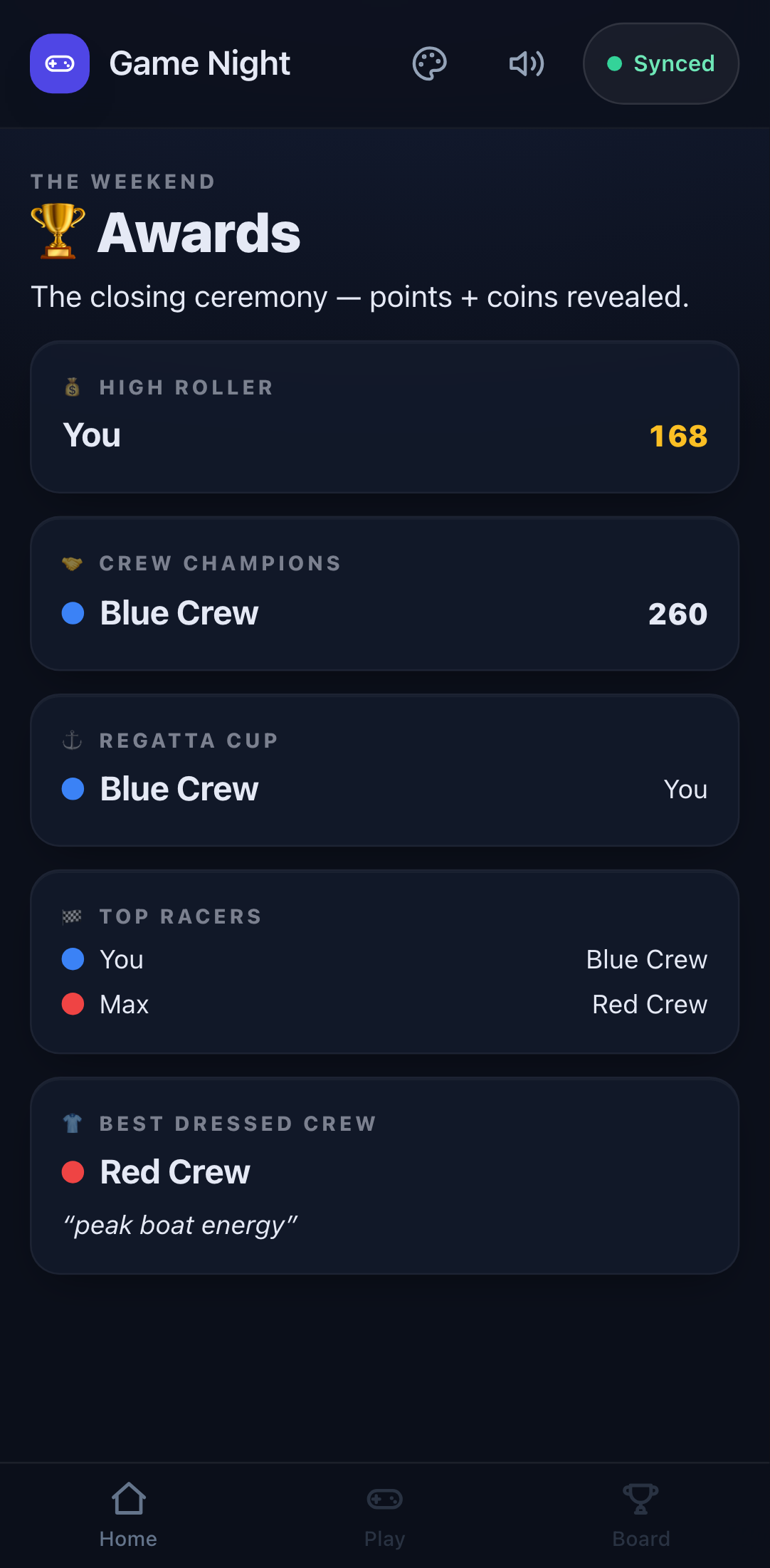
When the weekend ends and Awards are turned on, this tile shows the closing ceremony.
- Tap the Awards tile.
- Make sure you've traded in your coins first — every award counts points only, so anything still in the bank is wasted.
- The trophies are revealed — the five headline ones (💰 High Roller, 🤝 Crew Champions, ⚓ Regatta Cup, 🏁 Top Racers, 👕 Best Dressed Crew) and then eight more pulled straight out of the weekend's records: 🏆 Trophy Hoarder (most wins), 🥈 Silver Liner (most 2nd places), 🦾 Iron Man (most games played), 🎯 Risk Taker (most staked), 🔮 The Oracle (best betting accuracy), 💼 The Venture Capitalist (best return), 🤝 Bookie's Best Friend (most points lost betting) and ⭐ Fan Favourite (most points staked on you).
Tied? You share it. If two of you finish level on the top figure, you both hold the trophy — the card says "shared" and names everyone. No tiebreakers, no alphabet.
"🔒 Locked" at the top? Your Official froze the awards for the ceremony, so the figures here stop moving while the trophies are read out. The live board keeps updating as normal — if the two disagree, the locked one is what was announced.
See the economy guide for how each award is decided.
12. See who's winning — the leaderboard
Tap the Board tab (or the Leaderboard button inside your event) any time.
- Score or Wins — switch between ranking by total points or number of wins.
- Provisional / Official — tap to flip between all scores so far (provisional) and only the approved ones (official). If some are still waiting, you'll see "N pending review."
- Tag pages — if your organiser made tags, use the ‹ › arrows to move between the overall board and each tag (like "Round 1," "Finals").
Putting it on a TV? Anyone can open the login-free board at https://gamenight.hsu.mobi/boards and pick the event — perfect for casting to a big screen. It refreshes on its own.
13. All games — the event's match history
Want to see every match in the event — finished, in progress, or waiting for review — without digging into each session? Tap the All games button on the event home.
- Each match is a card with its match code, a status pill (in progress, betting open, awaiting review, final), the players, and the winner once it's decided.
- Live guesses (closest-time) stay hidden as a ✓ until the round is revealed — no peeking at opponents' times mid-round.
- Accepted games show a +N pts badge next to each player who earned placement points — the points from the game itself, not from betting or awards. Pending and rejected games have no badge.
- Review past matches (Event Officials only): if you're an Event Official, every resolved match (accepted or rejected) shows a Review button that opens the review detail screen — the same one you'd see from the review queue. You can modify or reverse a result here even after it was accepted.
14. Chat with everyone
Every event has an in-app chat for the whole event — no admin setup needed, it's always on. Tap the 💬 Chat icon at the top of the screen.
- Send a message: type in the box at the bottom and tap Send (or press Enter). Messages are limited to 500 characters.
- Unread badge: when you have messages you haven't seen yet, the chat icon shows a red badge with the count. Opening the chat clears it.
- Everyone sees everything: all messages are visible to every member of the event — it's a single room, no private DMs.
- Works offline: you can see past messages without a connection. Sending needs the internet, but the app queues your message and sends it as soon as you're back online.
Chat messages are synced through the same system as scores and bets, so they arrive quickly when you have a connection.
15. If you're an Event Official
Skip this section unless the organiser has made you the Event Official — the score-keeper for this game night. You'll know because you'll see a "Review scores" button in your event.
Being the Event Official doesn't change how you play — you play like everyone else. It just gives you extra jobs: you decide which submitted scores become official and you run the Regatta and Fire Ceremony.
Approving a game
- In your event, tap Review scores. (This needs internet — score decisions can't be made offline.)
- You'll see the review queue: every game waiting for your decision. Tap one to open it.
- Check the results. You can add a short note explaining your decision (optional). Then choose:
- Accept — the scores are correct. They become official. ✅
- Edit scores, then accept — fix a number first, then Accept with corrected scores.
- Reject — something's wrong; these scores won't count (you can undo this later).
You correct scores, not points. Type what each player actually scored and the app re-works the placements and points from that — so a correction can't accidentally hand out points that don't match the result. The same "no two scores the same" rule applies here. On a closest guess game you can also fix the target time the guesses are measured against, and the winner is recalculated for you.
No queue? If the organiser turned on Auto-confirm scores for this event, a submitted game is accepted automatically — the queue can stay empty and that's expected. You don't need to do anything.
Changing your mind later
- Approved a game by mistake? Open it and tap Modify (re-score), adjust, then Save corrected scores. Before anything is saved you get a summary of exactly what your change would do — who moves up or down, how their Doubloon totals shift, and whether any settled bets have to be voided and re-settled. Tap Confirm & Save to apply it, or Cancel to back out.
- Rejected one that was actually fine? Open it and tap Reverse (accept).
Every decision is recorded in an audit trail on the game, so there's always a clear history of who changed what.
Awarding Doubloons
The Review screen also has an Award Doubloons panel for handing out points beyond game placements:
- Participation → all — set an amount and tap it to give every member of the event that many points. It's a one-time grant per event — tapping again won't double anyone up.
- Give a bonus — pick a player, enter an amount and a short reason, then tap Give bonus for a one-off award (good sportsmanship, a clutch shot, helping set up…).
Both land on the live board right away, and each is recorded on the ledger.
Managing who's playing: adding and removing people from the event is done by the super admin in the
/adminarea — see the Super Admin guide. As the Event Official your job is the scores.
Running the Regatta
- Tap the Regatta tile. You'll see your crew's racer list.
- Enter each racer's best time in the time field.
- When all times are in, tap Lock in & award — this awards rank points, locks the times read-only, and builds the knockout bracket.
- In the knockout phase: tap a pairing's winner, then tap Confirm winner. Each decided pairing is locked.
- Once a crew has its Top Racer (🏆), move to the next crew.
- When both crews have a Top Racer, the Team Final appears. Decide it the same way to crown the Regatta Cup champion.
See the economy guide for how the Regatta phases and scoring work.
Running the Fire Ceremony
- Tap the Fire Ceremony tile (only visible when the super admin has turned it on).
- The checklist auto-checks: Betting settled?, Balances reconcile?, and shows the Coin chest readout.
- Add a Treasure Hunter pick and any special mentions if you like.
- The nightly nods (Day's Leader, biggest bet win) are auto-computed.
- Tap Close the day. Balances carry into tomorrow.
See the economy guide for what the Fire Ceremony is and why it matters.
16. If you're a Bookie
Skip this unless the organiser has made you the Bookie — you run the betting. You'll see a Bookie portal tile on your event home.
See the economy guide for how betting works — odds, locked points, and the house.
Open the window for a game
Betting opens automatically when a match starts — a countdown window pops open on its own and shows a live closes in MM:SS on the betting screen and on the event home. You don't have to do anything for the window to open. If you want to override the auto-window:
- In the Bookie portal, find the game under Games (each shows a live countdown pill while the window is open).
- Tap Close betting to shut it early, or Open betting again any time before the game ends.
The portal also shows the bet counts per game and, once a result is in, a Settle button to pay out winners.
Physical chit bets (slip betting)
A chit is a physical betting slip — ownerless until it's redeemed. During the betting window a player hands you coins and a slip; you don't enter it then. Instead:
- Tap View line next to the game to read every competitor's live odds.
- Collect the coins and write the pick + stake + line onto the chit itself. Nothing is written to the app yet — the bet lives only as the physical slip.
The chit is reconciled at the Fire Ceremony (after the result is in). See the next section.
Reconcile a chit at the Fire Ceremony
Once a game has settled, the holder brings the chit to you:
- Tap Log a chit bet (or Reconcile a chit on a settled match).
- Pick the holder (the player redeeming it) and the subject they backed.
- The line is pre-filled from the game's odds — edit it to match the line written on the physical chit if they differ.
- Enter the stake (the coins on the chit). Tap Reconcile. The bet is entered and paid out in one step: a win credits the holder's points, a loss credits nothing.
Chits never touch anyone's points while in play, and a chit loss doesn't debit — the payout is minted as points at reconcile time.
Close the window and settle
- After the result is in: tap Settle bets. Winners are paid at their odds; losing stakes are gone. (If a game's result is rejected, its open bets are voided automatically.) (On events with Auto-settle bets on, this happens automatically — no Bookie tap needed.)
17. If you're a Teller
Skip this unless the organiser has made you the Teller — you handle physical coin operations. You'll see a Teller portal tile on your event home.
See the economy guide for coins, the bank, and the Teller's role.
Blind withdrawal
A player asks for physical coins:
- Tap Withdraw (in person).
- Pick the player and enter the amount.
- The app says yes or no based on the pool. If yes, hand over the tokens.
Fulfill a pending request
Players can request withdrawals from their own phone (the Wallet tile). Pending requests appear in your queue:
- In the Teller portal, see Pending requests.
- When you've handed over the tokens, tap Fulfill next to the request.
- The coins are deducted from their virtual balance.
Deposit physical coins
A player returns physical tokens to you:
- Tap Deposit in the Teller portal.
- Pick the player and enter the amount you're banking for them.
- Tap Deposit. The coins are added to their virtual balance.
Return to bank
When the Bookie brings you coins they collected for chits, bank them anonymously:
- In the Teller portal, find Return to bank.
- Enter the number of coins returned and tap Return to bank.
No player is credited — this just refills the bank so pending withdrawals can be fulfilled.
18. What works offline (and what needs internet)
Game Night keeps working even when the Wi-Fi drops — your scores are saved on your phone and catch up automatically when you reconnect.
| Needs internet | Works offline |
|---|---|
| Claiming your profile the first time | Starting a game and the lobby |
| An Event Official approving, rejecting or correcting scores | Playing and keeping score |
| Placing a bet, and the Bookie settling one | The host submitting scores (queued, syncs later) |
| Chat, Broadcast and the Regatta | Seeing the current standings on your phone |
Submitting scores while offline queues the mutation; it syncs as soon as you reconnect.
If you ever see the sync dot turn red or grey (no colour), don't worry — keep playing, and everything syncs up once you're back online.
The words we use
| Word | Plain meaning |
|---|---|
| Profile | You in Game Night — your name and picture. |
| Claim code | The 4-digit code the organiser gives you to take over your profile the first time. |
| PIN | Your own 4-digit code you set after claiming; used to sign in again later. |
| Event | A game night you've been added to. |
| Host | Whoever started a game — they keep score for it. Anyone can be a host. |
| Lobby | The waiting room where players gather before a game starts. |
| Match | One round of a game. Numbered (Match 1, Match 2, …). |
| Game session | The one match a host starts from a template — scored once, then a new session can be started. |
| Provisional / Official | Provisional = counts now but not yet approved. Official = approved by the Event Official. |
| Crew | Your team for the weekend, picked once on your Profile home — shown as a coloured dot next to your name. No dot means you haven't picked yet. |
| Leaderboard / Board | The standings — who's winning. |
| Event Official | The player who approves this event's scores, awards Doubloons, and runs the Regatta and Fire Ceremony. |
| Bookie | The player who runs betting — opens/closes the window and settles bets. |
| Teller | The player who swaps virtual coins for physical tokens and back. |
| Tag | A label (like "Round 1") that groups scores on the leaderboard. |
| Doubloon | The one unit of value — you hold them as points (public) or coins (secret). |
| Points | Your live, public score. The only thing you can bet with. |
| Coins | Doubloons you've stashed — secret, off the board. |
Quick troubleshooting
| Problem | Fix |
|---|---|
| Can't find your name on "Who are you?" | Ask the organiser to create a profile for you. |
| "Wrong code — try again" | Double-check the 4 digits with your organiser (they can reset it). |
| "Claiming needs a connection" | You're offline. Reconnect and try again. |
| The game night isn't in "Your events" | Ask the organiser to add you to that event. |
| Nothing under "Start a game" | The organiser hasn't added a game yet — ask them to. |
| Signed out unexpectedly | Your profile was claimed on another phone. Claim again with your PIN. |
| (Event Official) "Review needs a connection" | Score approvals are online-only — reconnect to review. |
| Don't understand the economy rules? | See the Doubloon economy guide for how everything works. |
See also: the Doubloon economy guide — how betting odds, coins, treasure, the Regatta, and the Awards work. And the Super Admin guide — for whoever sets up and runs the game night.