Setting up & running Game Night — the Super Admin guide
This guide is for the super admin — the person who sets Game Night up behind the scenes. If you can fill in a form and share a code with a friend, you can do everything here. No technical knowledge needed.
By the end you'll be able to: add people, choose which games can be played, create a game night, put someone in charge of the scores, and put the leaderboard up on a TV.
New to the words we use? There's a plain-English glossary at the bottom. Peek at it any time.
What the super admin does (and doesn't)
You are the organiser behind the scenes. You sign in with a password — you do not have a player profile, and you don't play or keep score yourself.
You set things up:
- Add people (create their profiles and give out claim codes)
- Decide which games can be played (create game templates)
- Create a game night (an event) and choose who's in it
- Put one trusted person in charge of approving scores (the Event Official), and optionally appoint a Bookie and a Teller for the economy
- Tidy up afterwards, and show the scores on a big screen
You don't: play games, keep score, or approve scores. Playing and scoring happen in the normal app and are covered in the Player guide. Approving scores is the Event Official's job (also in the Player guide).
1. Sign in to the control room
Everything you do lives at one web address: your site with /admin on the end.
- Open a browser and go to
https://gamenight.hsu.mobi/admin. (If Game Night lives at a different address, use that address with/adminon the end.) - Enter the admin password and sign in.
- You'll land straight in the control panel, titled "Manage Game Night."
At the top you'll find a light/dark switch and a Sign out button. That's it — this area is completely separate from the app your players use, and there's no link to it from the app. Bookmark the page so you can find it again.
"Page not found" when you open
/admin? That means the admin password hasn't been set up yet. Whoever installed Game Night needs to set it once. Until then, the door stays locked on purpose.Asked to sign in again partway through? That's normal — the sign-in expires after a while. Just reload and enter the password again.
The panel has three sections, top to bottom: Profiles, Game templates, and Events & membership. The rest of this guide walks through each one.
2. Your first game night in 10 minutes
In a hurry? Do these six things in order and you'll have a game night ready to play. Each step links to the fuller instructions below.
- Add at least one game → Game templates. (Nobody can start playing until there's a game to pick.)
- Create the event → Events & membership. Give it a name like "Friday Game Night."
- Add profiles for everyone coming → Profiles & claim codes. Give each person a name and a 4-digit code.
- Put your players in the event → Add members. Only people in the event can play in it.
- Pick your score-keeper → Event roles. Make one member the Event Official.
- Share the codes. Tell each person the web address, ask them to open it, tap their name, and type their 4-digit code. Put the leaderboard on the TV with the public board.
Done — the group can play. From here on, players run the games themselves; you only step back in to add someone new or tidy up.
3. Profiles & claim codes
A profile is a person in Game Night — their name and a little avatar picture. People don't sign themselves up; you create a profile for each person, then hand them a short code so they can take it over on their phone.
Find the Profiles section (the first one).
Add a profile
- Type the person's Name (required).
- Pick an avatar picture (optional — it just helps people spot their name).
- Type a 4-digit code (required) — any four numbers, e.g.
1234. This is the claim code you'll give them. - Tap Add profile.
The new profile appears in the list below, marked unclaimed until that person takes it over on their phone.
What's a claim code for? It's a one-time key. You give it to the person; they open the app, tap their name, and type the code to prove it's them. After that first time, they set their own personal 4-digit PIN and the claim code isn't needed again. Codes are shown in plain text here on purpose, so you can read them out or text them. It's fine if two people happen to have the same code — each person still taps their own name.
Manage an existing profile
Each profile in the list has these controls:
| What you want to do | How |
|---|---|
| Change their picture | Tap their avatar, pick a new one, tap Save avatar. |
| Rename them | Tap their name, type the new name, press Enter. |
| See or change their code | The code is shown next to each name. Tap Reset code to set a new 4-digit code (use this if someone forgets theirs before claiming). |
| Sign them out of a lost/old phone | Tap Revoke device (only shows once they've claimed). They'll need to claim again on their phone. Their code stays the same. |
One phone at a time. Each profile can be active on only one device. If someone claims on a new phone, the old one is automatically signed out — you don't have to do anything. Revoke device is only for when you want to force that yourself (e.g. a lost phone).
4. Game templates: what can be played
A game template is a reusable description of one game and how it's scored — like "Trivia," "Darts," or "Closest guess." Players pick one of your templates when they start playing; they can't invent their own. Set these up once and reuse them every game night.
You must create at least one template, or players will have nothing to start.
Find the Game templates section.
Add a template
- Template name — what players will see, e.g. "Trivia" or "Score sheet."
- Description (optional) — a short note.
- Mechanic — how scores are captured:
- Manual (host records scores) — the person running the game types in each player's score. This fits almost everything.
- Closest time (players guess) — each player guesses a time on their own phone; closest guess without going over wins. A fun party format.
- Winner (manual games only) — does a higher score win (most points) or a lower score win (fewest strokes, fastest time, etc.)?
- Default format — Individual or Team. This is just the starting choice; the person running a game can flip between Singles and Teams each round. 5b. Winner gets (closest-guess games only) — how many points the closest guess earns. Default 1. Everyone else gets 0, and every player still earns the flat +1 for turning up, so a 5-point prize means the winner banks 6 and everyone else 1. 5c. Once per event — tick this for a game that should be played a single time per event, like an official chair toss. Once it's been played, the game picker shows it greyed as "Already played — once per event", and the server refuses a second one even from a stale phone. Untick it to allow it again.
- Tap Add template.
Your templates appear in a list. Each row lets you:
- Edit — change its settings. (Edits only affect future games; games already played keep the settings they had.)
- Disable / Enable — hide a template from players without deleting it (handy for seasonal games). Disabled ones show "· disabled."
- Delete — remove it for good. You can only delete a template that's never been used; if it's in use, the button is greyed out — Disable it instead.
5. Events & members
An event is a single game night — for example "Friday Game Night" or "Company Offsite." It holds the group of people who are playing and keeps their running scores.
Find the Events & membership section.
Create an event
- Type an Event name.
- Tap Add event.
Every new event gets its two default crews (Teal & Purple — you can rename/recolor them in the Crews editor) and these per-event settings, all editable once the event is open:
- Starting balance (Misc card) — an amount of Doubloon points auto-granted to each player the first time they genuinely join the event (never on a re-add or a device switch). Default
0if you leave it blank. - Awards and Fire Ceremony (Misc card) — both are off by default for new events. Turn them on if you want the closing-ceremony Awards screen and the nightly Fire Ceremony reconciliation to be available to players. When off, the player-facing tiles are disabled (not hidden) and the routes simply don't run.
- Regatta (Misc card) — a Reset button to clear the time-trial times, the knockout bracket, and the Cup so the Regatta can be run again. Already-awarded points are kept.
- Auto-confirm scores and Auto-settle bets (Misc card) — both off by default for new events. Turn Auto-confirm scores on to skip event-admin review — a host's submitted game is accepted automatically the moment it lands (the audit row is stamped
auto, so the trail stays honest). Turn Auto-settle bets on to have a game's open bets settle themselves the instant its result is accepted (manual or auto). The two compose freely: on an event with both on, a submit cascades all the way to paid-out bets with no human in the loop. When off, the Event Official / Bookie handle those steps as usual. - Public boards (Misc card) — on by default. Switch it off to hide the sign-in-free leaderboards and betting-boards for this event: it stops appearing in the pickers at
/boardsand/betting-boards, and the TV views for it (/board/<event>,/betting-board/<event>) stop serving — a bookmarked screen goes blank rather than staying reachable. Players who are signed in are unaffected: the in-app leaderboard, crew standings and betting hub all carry on as normal. Handy for a test event, or last year's night you'd rather guests didn't browse.
It appears in the list. Tap the event to open it — that reveals its rename box, tags, members, and cleanup tools. (Tap it again to close.)
To rename an open event, edit the Event name box and tap Rename. The new name reaches everyone in the event automatically.
Add and remove members
Only people who are members of an event can play in it — so add everyone who's coming.
- Add someone: open the Add member… dropdown, pick a person, tap Add.(They must already have a profile.)
- Remove someone: tap Remove next to their name.
Once added, players see this event under "Your events" in the app.
Tags (optional)
Tags are labels like "Round 1," "Quiz," or "Finals" that let the leaderboard show scores in groups. You create the tags here; the person running a game ticks which ones apply, and the leaderboard gets a page per tag.
- Add a tag: type it in New tag and tap Add.
- Remove a tag: tap the ✕ on it.
Skip this if you just want one overall leaderboard.
Crews — names, colours & the 2-crew cap
Every event gets two default crews (Teal & Purple) when it's created — you can rename and recolor them at any time. The app shows exactly two crews per event (the Regatta and crew-vs-crew points need exactly two sides). If you ever need to replace a default crew with a different one, just rename/recolor it — don't add a third.
- Rename or recolour: in Crews, edit the name or colour for a crew and tap Save (the colour picker is a hex code like
#26C6DA). - Add a crew button: disallowed if you already have two crews — the Regatta caps at two.
- Delete a crew: only allowed when the crew has no members (so move everyone off it first).
Players see their crew as a coloured dot next to their name everywhere in the app — the leaderboard, score sheets, the lobby, and match results. Players pick their own crew the first time they open the event without one — a prompt appears right on their Profile tab, and there's no self-service way for a player to change it afterward. You can move a player between crews from the Members list in the admin panel any time sides need balancing (this is the only way to change a crew once it's picked). Crewless players show no dot until they pick.
6. Event roles: official, bookie, teller & deputy
Beyond plain players, an event has up to four jobs you assign from the Members list — each member has a role dropdown:
- Player — plays like everyone else; no special powers.
- 🏁 Event Official — approves game results (the Review scores screen), awards Doubloons, runs the nightly Fire Ceremony, picks 👕 Best Dressed, and locks the awards for the closing ceremony. (Result-approval details are in the Player guide.)
- 🎲 Bookie — runs betting: opens/closes the window and settles bets. Never enters results.
- 🏦 Teller — swaps coins for physical tokens and back and guards the finite coin pool. Never enters results or runs betting.
- 👑 Deputy — holds all three jobs above at once (Official + Bookie + Teller). For a small event run by one or two trusted organisers who need to cover everything themselves.
To assign one: open the event, find the person in Members, and pick a role from their dropdown. Choosing Player clears any role.
Separation of duties. Event Official / Bookie / Teller are normally mutually exclusive — one person holds at most one of them on an event. Picking a new role automatically clears the old one, so nobody can end up holding two. Roles are per-event: a Bookie at one game night has no powers at another. Deputy is the one deliberate exception — it combines all three duties on a single person, for small events where the same one or two people are running the whole show.
Pick at least one Event Official (or Deputy) per event, or nobody can turn provisional scores into official ones. You can appoint more than one.
7. Show the scores on a TV
Two ways to put the leaderboard on a big screen — no sign-in needed on the TV:
- Public board: open
https://gamenight.hsu.mobi/board/followed by the event, or go to/boardsto see a list of events and pick one. This is a clean, login-free scoreboard made for casting to a TV. - From a player's phone: any player can open the Board tab, and there's a kiosk/full-screen mode for a dedicated display.
The board updates on its own as games are approved. You can flip it between Score and Wins, and page through your tags if you made any.
Don't want an event on these? Switch Public boards off on the event (§5). It drops out of the
/boardsand/betting-boardslists and its TV views stop serving, while signed-in players keep seeing it normally.
8. Economy: treasure & corrections
The economy mostly runs on the players' own screens (see the Doubloon economy guide). As super admin you own two things from the control room: the physical-coin pool + treasure hunts, and corrections.
The physical-coin pool
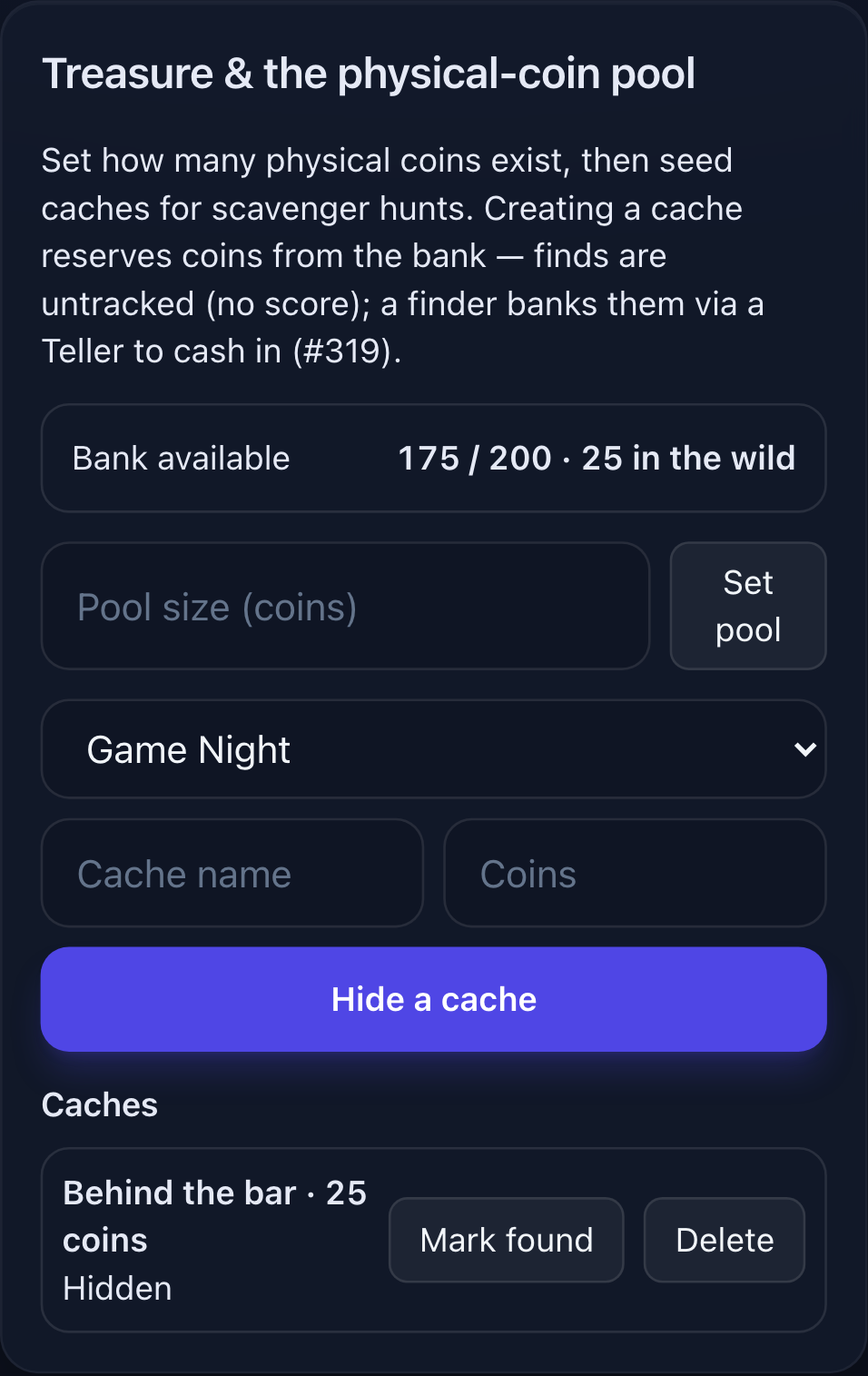
Physical tokens are a finite pool. In the Treasure & the physical-coin pool card, set the Pool size (how many tokens exist in total) and tap Set pool. The card then shows available / total · in the wild — how many are in the bank versus out with players or hidden as treasure.
Top up the coin pool mid-event
Need more physical coins in circulation? Next to Pool size, there's an Add to pool field — type an amount and tap Add to pool to increment the total without overwriting it. Every top-up is recorded in an audit trail shown below the field (amount, date, and any note you provided).
Say how many coins are already out in the wild
Handed coins out by hand, or counted the jar and the numbers don't match? Type the number that are currently out of the bank into In the wild (coins) and tap Set in wild. The bank readout adjusts to match — set it to 0 when every coin is back in the tin.
This is a reconciliation, not a separate tally: the app works out the difference and records it as a physical coin movement, so it survives every later deposit, withdrawal and cache. You can't put more coins out than the pool holds — raise Pool size or Add to pool first.
Bank readout looks wrong — e.g.
availablehigher thantotal, or a negative number in the wild? That means more coins have been banked than were ever taken out (easy to do with test data). Setting the in-the-wild count to what you actually counted fixes it.
Hide a treasure cache
A cache reserves physical coins from the bank for a scavenger hunt (great for the kids).
- Pick the event, give the cache a name and a coin amount, then tap Hide a cache. Those coins leave the bank (available drops) and go "into the wild."
- Finding a cache is untracked — no score changes. The finder keeps the tokens; to turn them into score they bank with a Teller and trade in before the weekend ends, just like any physical coins.
- Use Mark found / hidden for your own tracking, and Delete to un-reserve a cache (only if the coins are physically back in the bank).
Because finds aren't tracked, the app can't tell who found the most — the Treasure Hunter nod is Admin-observed, called out at the nightly Fire Ceremony.
Balance corrections
In Economy — balance corrections, pick a player, choose points or coins, type an amount and a reason (required), then Post adjustment.
The sign decides the direction: 90 adds 90, -90 takes 90 away. There's no separate "penalty" choice — it only ever changed the label in the ledger, never the maths, so a "penalty" of +90 actually gave someone 90 points. One less thing to get wrong.
Every entry is logged to the ledger, and you can Reverse any entry — it posts an equal, opposite correction.
Games available per event
Templates are global — configured once in the Templates tab and offered to every event. The Games available card on the Event tab narrows that down for one event:
- Tick the games this weekend should offer. Players see only those in Start a New Game.
- Nothing ticked = every game is available. That's the default for a new event, and unticking everything is how you clear a restriction rather than how you offer nothing.
- It's a menu, not a lock: a session already running on a template you untick keeps playing — only new sessions are blocked, so pulling a game can't strand one in progress.
- The server enforces it too, so a phone with an out-of-date list gets a clean rejection instead of a half-created session.
Curating the list is super-admin only (this control room) — an Event Official can't change it.
Misc per-event settings: starting balance, Awards, Fire Ceremony, visibility, Regatta reset
Open an event and scroll to the Misc card. It bundles four settings scoped to that event:
| Setting | What it does |
|---|---|
| Starting balance | Doubloon points auto-granted the first time each player joins this event (never on a re-add or device switch). Set a number and tap Save. Default 0 = no auto-grant. |
| Awards | Toggle on to make the closing Awards screen available to players (off by default for new events). Off disables the tile — it doesn't hide it. Thirteen trophies: five headline ones plus eight dug out of the betting book and match sheet. An Event Official can lock them from the screen itself right before the ceremony, so a late score correction can't move a trophy mid-announcement — locking again after a genuine fix is fine, and only the awards freeze (the boards carry on). |
| Fire Ceremony | Toggle on to make the nightly Fire Ceremony reconciliation available (off by default). Same behaviour as Awards above. |
| Show in app | On by default. Off removes this event from every player's in-app event list — including event admins and you, so once it's off the only way back is this control room. Nothing is deleted: members, sessions, games, the ledger and the boards are all untouched and reappear the moment you switch it on. Use it to retire a finished event, or to park a test event between runs. |
| Regatta reset | Tap Reset to clear the time-trial times, knockout brackets, and Cup for this event — lets you re-run the Regatta. Already-awarded points are kept (the ledger is untouched). |
| Auto-confirm scores | Toggle on to skip event-admin review — a submitted game is accepted automatically (audit stamped auto). Off by default; off keeps the manual review queue. With it on you don't need to appoint an Event Official for approvals, though you still need one to run the Regatta/Fire Ceremony. |
| Auto-settle bets | Toggle on to have a game's open bets settle themselves the instant its result is accepted (manual or auto). Off by default; off means the Bookie settles by hand as usual. |
| Public boards | On by default. Off hides the sign-in-free leaderboards and betting-boards for this event — it leaves the /boards and /betting-boards pickers, and its TV views stop serving. Signed-in players are unaffected. |
9. Cleaning up after a game night
Open an event and scroll to Game sessions to tidy up. Everything here is scoped to the one event, and deletions can't be undone, so you'll be asked to confirm.
- See what happened: tap a game session to expand its matches.
- Delete one game session (and its matches): tap Delete next to it.
- Delete a single match: expand the session and tap Delete next to that match.
- Start fresh: tap Clear all to remove every game session and match for the event. The event itself, its members, and your templates are kept — so you can reuse the same event for next time.
The words we use
| Word | Plain meaning |
|---|---|
| Super admin | You — the behind-the-scenes organiser. Signs in with a password; doesn't play. |
| Profile | A person in Game Night (a name + avatar). You create these. |
| Claim code | The 4-digit code you give someone so they can take over their profile the first time. |
| PIN | The personal 4-digit code a player sets for themselves after claiming; how they sign in later. |
| Crew | A team in the event — exactly two per event. Players see their crew as a coloured dot next to their name. |
| Game template | A reusable "which game + how it's scored." Players pick one to play. |
| Event | One game night. Holds its members and their scores. |
| Member | A person added to an event. Only members can play in it. |
| Event Official | A player you put in charge of approving that event's scores + awarding Doubloons. Plays normally. |
| Bookie | A player who runs betting — opens/closes the window and settles bets. Plays normally. |
| Teller | A player who swaps coins ↔ physical tokens and guards the coin pool. Plays normally. |
| Deputy | A player who holds all three jobs at once (Official + Bookie + Teller) — for small, organiser-run events. |
| Host | Whoever started a particular game and keeps its score. (Players sort this out themselves.) |
| Game session | The one match a host starts from a template — scored once, then a new session can be started. |
| Match | A single round of a game. Numbered (Match 1, Match 2, …). |
| Tag | A label (e.g. "Round 1") that groups scores on the leaderboard. |
| Provisional / Official scores | Provisional = submitted but not yet approved. Official = approved by the Event Official. |
| Leaderboard / board | The standings — who's winning. Can be shown on a TV with no sign-in. |
Quick troubleshooting
| Problem | Fix |
|---|---|
/admin shows "Page not found" | The admin password isn't set up yet. Whoever installed Game Night sets it once. |
| Asked to sign in again mid-task | Normal — the session expired. Reload and re-enter the password. |
| A player says "there's nothing to play" | Add a game template, and make sure it isn't disabled. |
| A player can't find the game night | Add them as a member of the event. |
| Nobody can make scores official | Appoint an Event Official for that event. |
| A player got a new phone | Ask them to open the app and claim again with their PIN, or tap Revoke device on their profile first. |
| Can't delete a template | It's been used in a game. Tap Disable instead of Delete. |
| Need to peek at the database? | Advanced only — the DB tab in the admin panel lets you run raw SQL read/write queries (super admin only). Only SELECT/INSERT/UPDATE/DELETE, single-statement. |
See also: the Player guide — hand it to everyone who's playing (it also covers the Event Official's score-approval screen).